Video importer
This page gives insight on how to import and work with video files shown in video charts.
Selecting video
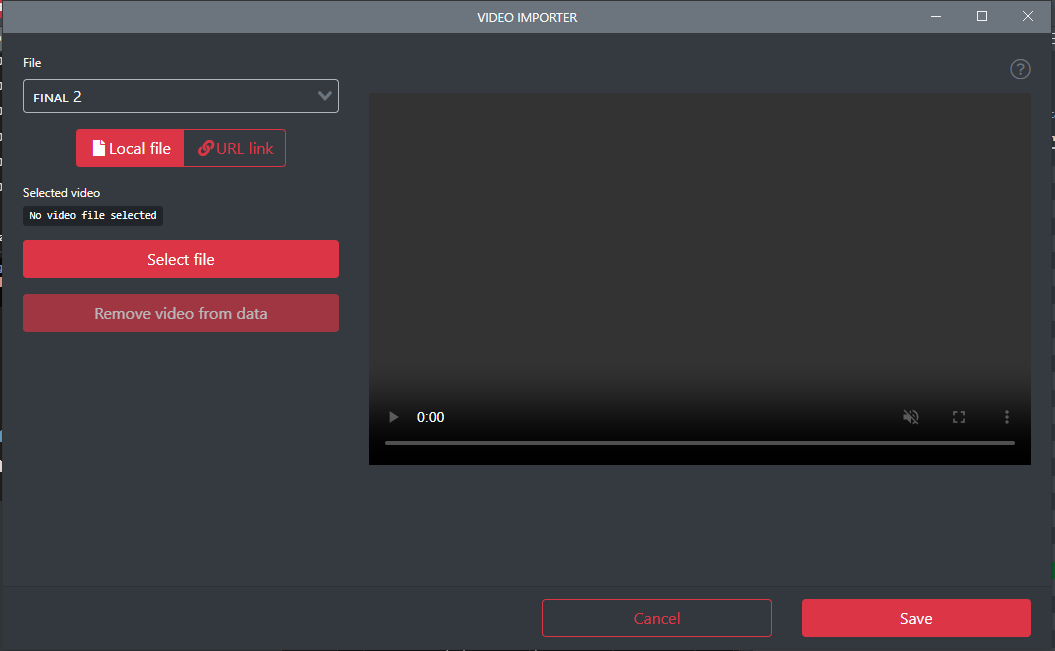
To select video for data file, user need to import file in the video importer window  . It is possible to use local video files and also it's possible to load video directly from internet.
Info
When using URL as a source for the video, then link MUST point directly to the video file. For example YouTube links alone do not work.
Note
Video selection is working globally, so if you have multiple video elements in the workspace, the same video per data file is used in all elements
Note
It is recommended to use maximum full HD videos as the element does have some performance issues. Higher resolutions are supported but be aware for possible performance issues.
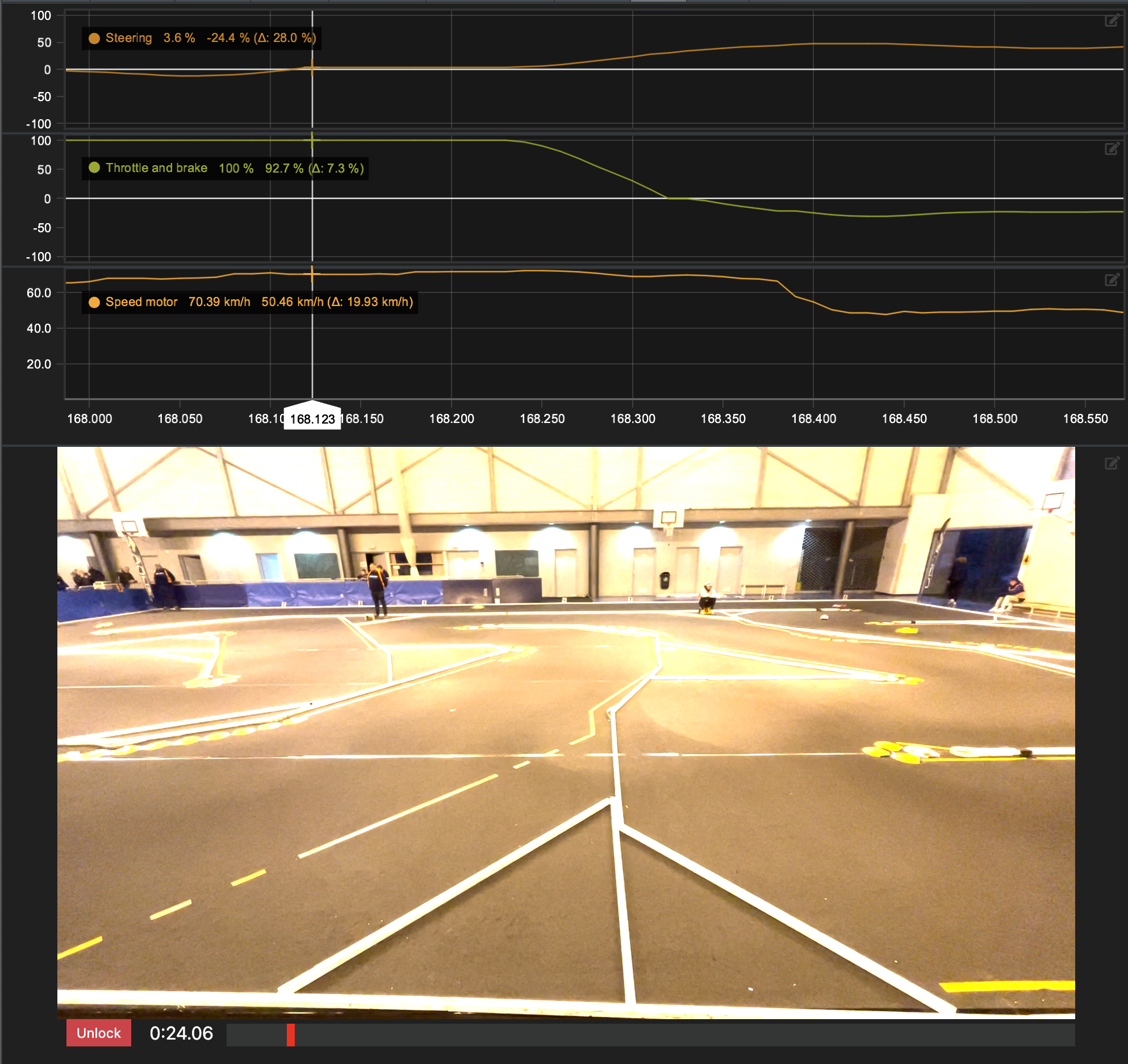
Locking video to data
Data and video must be synced manually, but the process is simple.
- First move the video to a location where it is simple to match the data to video.
- Move your data cursor in the location where video is currently positioned.
- Click Lock button from the video element to lock video location to data.
After locking is completed, then video will always seek to correct location after data cursor is moved.
Tip
Good spot to link data to the video is where the car starts to move from stand still.
Info
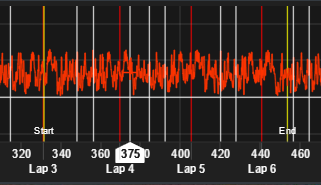
Line chart displays video start and end positions.
Tip
Steering channel can be used to make a recognisable marker for video linking by doing couple fast left and right inputs for example when waiting for a race start.
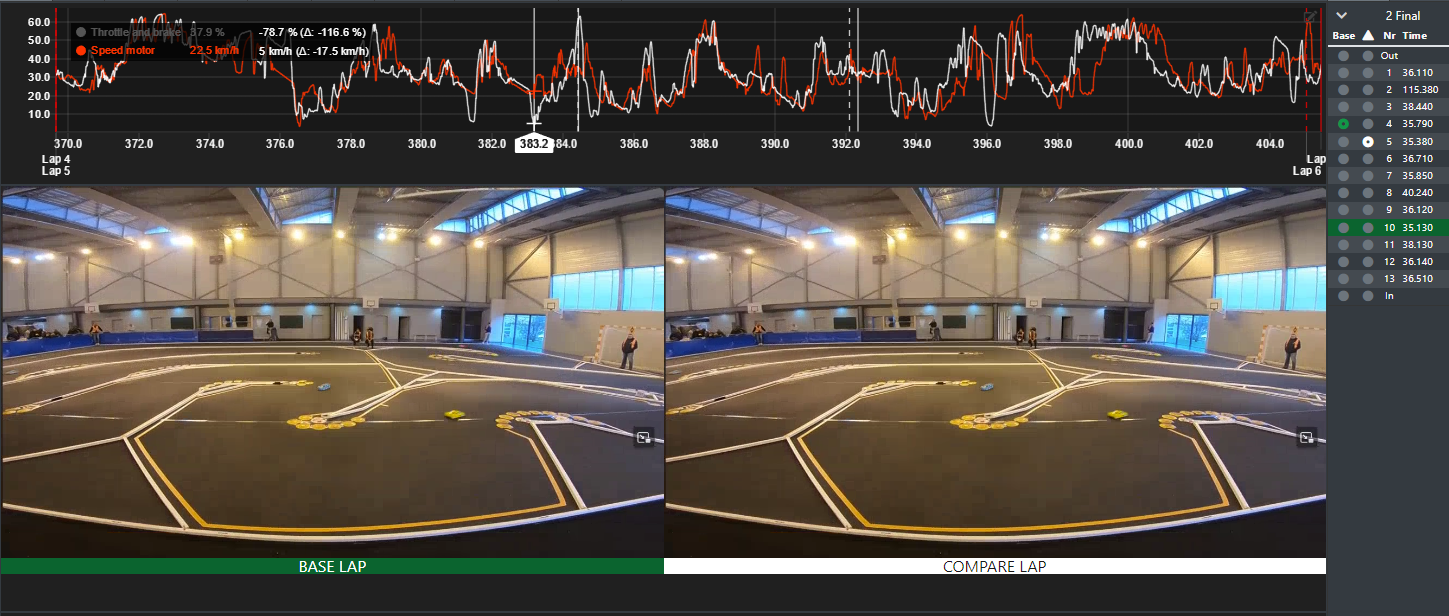
Comparing laps
Video element allows showing two videos in parallel. Locking/unlocking videos is not possible when comparing files, so user must lock the videos to data files before comparison.